Manage Members and Settings
Manage Luxor Agent Cloud members and workspace settings. Invite team members, assign roles, & configure your cloud environment for peak collaboration.
Members Management
This section allows you to manage user access across your Workspace, from inviting new members to adjusting roles or removing users as needed. It provides centralized control over who can access and collaborate within your environment.
How to Invite new Members
Go into the Members page
Important
Only Owner and Admin roles can manage members in the Workspace.
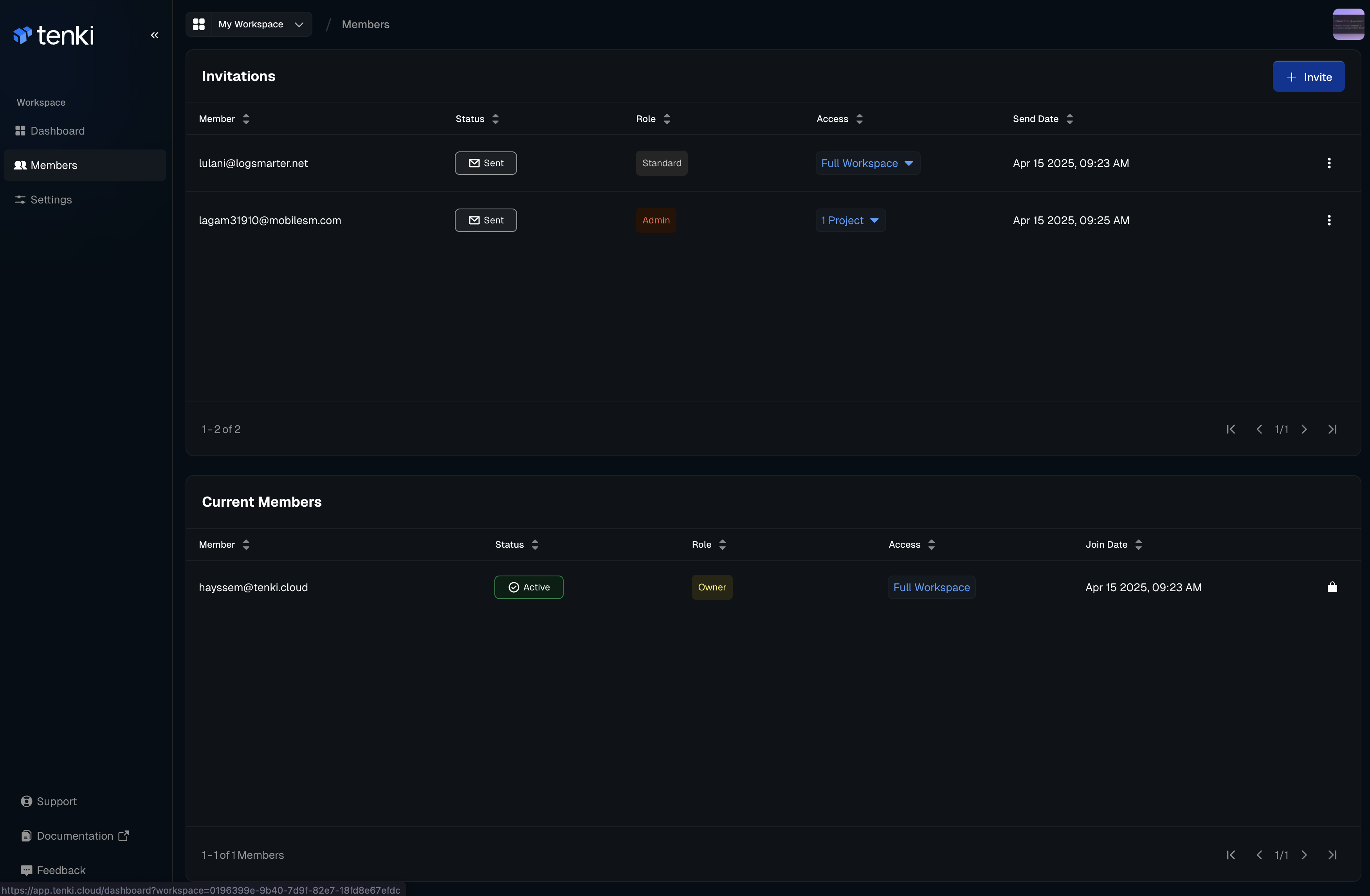
Enter the user information and select the role
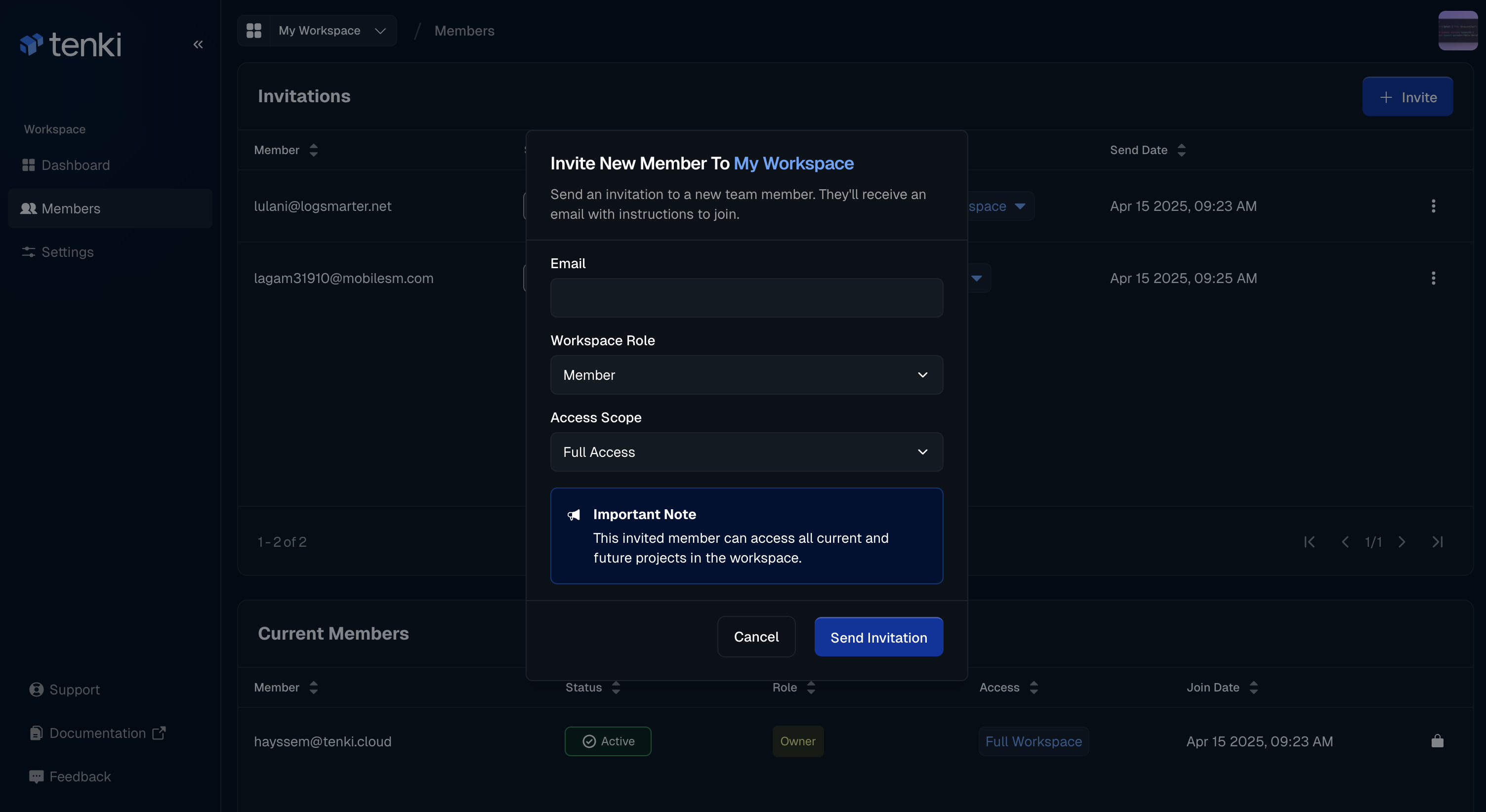
The user will complete onboarding and automatically receive the access level you’ve assigned.
How to manage existing Members
To manage or update an existing user's role, go to the Current Members table, click the Actions icon next to their name, and select Edit.
Settings
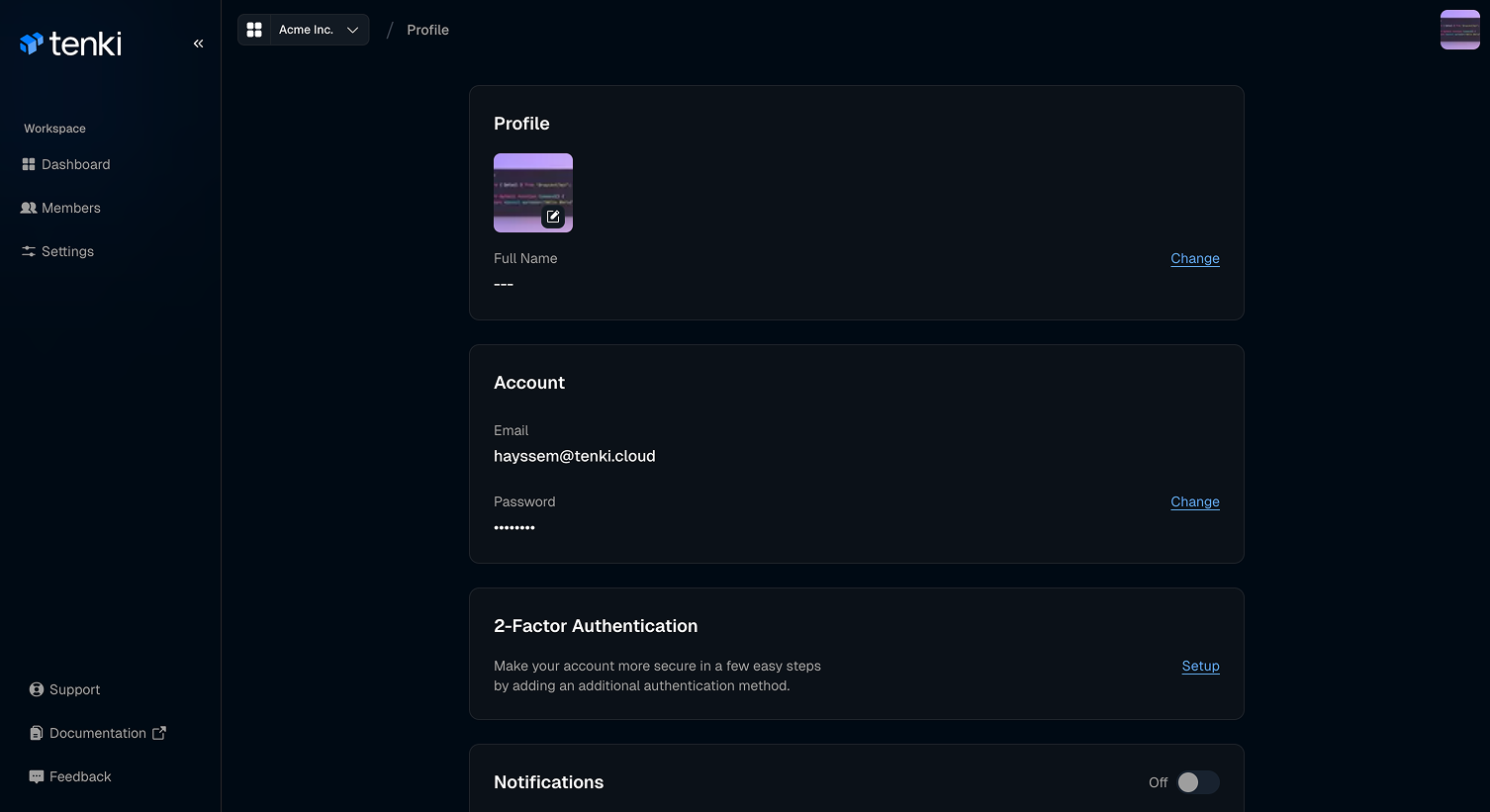
How to manage your account settings
In the Account section, you can set your full name for billing purposes, manage your password, and enable two-factor authentication (2FA). Please note that this email will be used for all communications from us.
Find your Workspace ID
Open the dashboard, select Settings in the sidebar, and copy the value in the Workspace ID field. This stable identifier may be requested by support. Normal Sandbox CLI and SDK requests infer the workspace from the API key and do not need this ID.
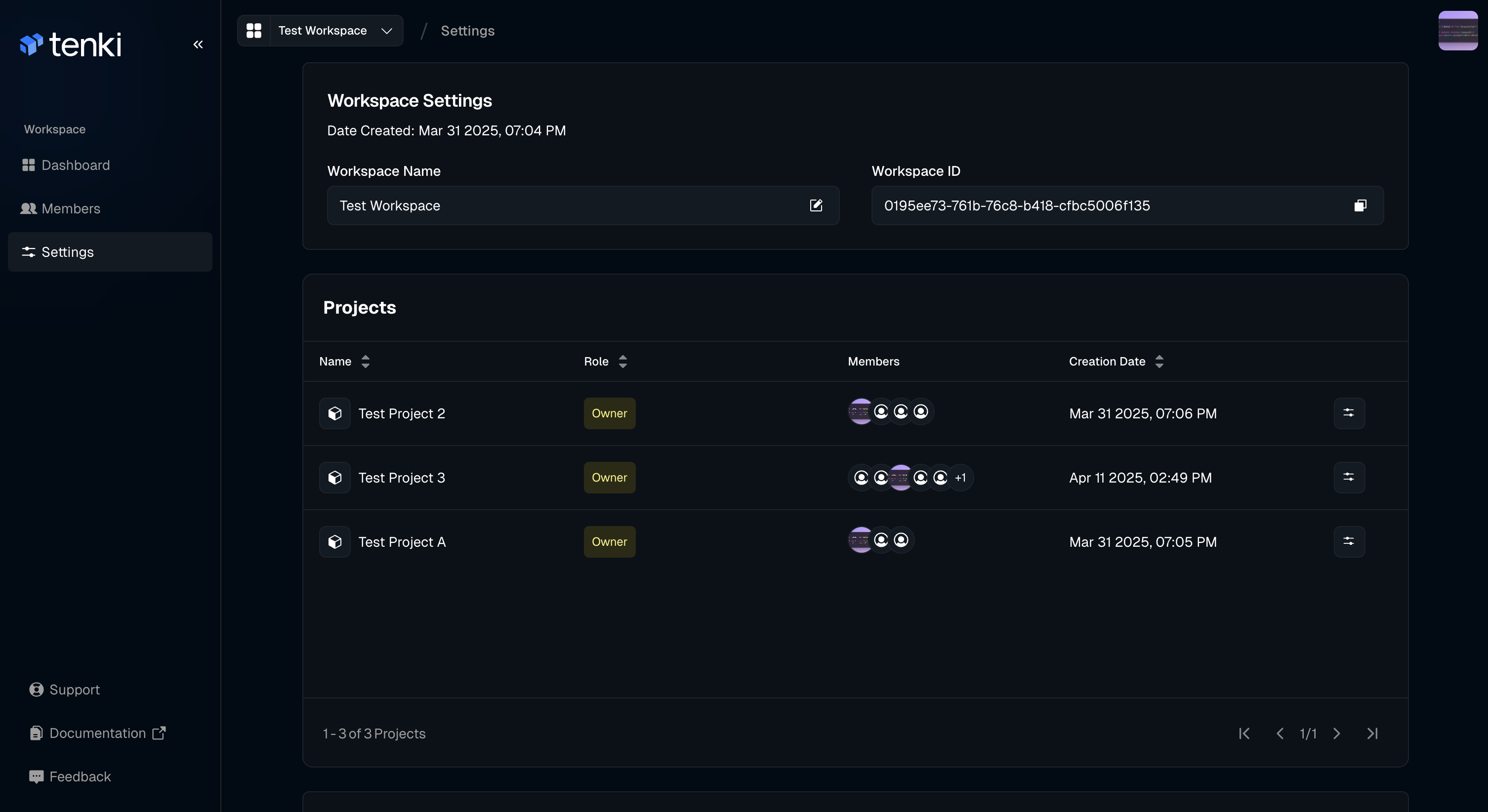
Workspace Settings also lets you rename the workspace and its slug, manage connected applications and repositories, and, depending on your role, delete or leave the workspace. API keys are managed separately; see Manage API Keys.
What happens when you delete a workspace
Deleting a workspace ends access to it right away:
- Its API keys stop working. Requests with one fail with
401 Unauthorized, even if the key's owner belongs to other workspaces. - Its sandboxes, volumes, templates, and snapshots return
404 Not Found, and Luxor Agent Cloud shuts down its running sandboxes and previews. - Members lose access to its sandboxes. At first they get
404 Not Found. Once Luxor Agent Cloud finishes removing their access, they get403 Permission Denied, the same as someone who was never a member.
Deleting a workspace a second time returns 404 Not Found.